For dispatchers and accountants
CMR, e‑Factura and e‑Transport software
- Archive
- Electronic, with the CMRs
- From the software
- e-Factura and e-Transport
3 days free, on Ultra Light and Light, with monthly payment
The CMR from the order: printed already filled in, tracked until unloading.
- CMR sheet from the order
- 4, 5 or 6 copies, optional logo
- At unloading
- With or without reservations
- What is missing shows in
- CMR Warnings, Archive Check
Drawing seen from above, an example with demo data. On the left, order 990431 · TO-24817: loading Cluj, unloading Hamburg, goods 18.400 kg, truck B 101 DEM. The data goes by itself into the boxes of the CMR sheet (1 sender, 2 consignee, 6–12 goods, 16 carrier). The A4 sheet is printed in 4, 5 or 6 copies, with a logo if you want, each copy with its own colour band: red for the sender, blue for the consignee, green for the carrier, black for the customer. The PDF of the saved sheet goes into the order file. The dispatcher has two more lists: CMR Warnings, with the CMRs unloaded with reservations or not unloaded, and Archive Check, with the orders that have no file or no CMR. The truck carries the CMR from loading, 06.10, to unloading, 08.10. At unloading, in the CMR Unloading window at the unloading place, each CMR has the Unl. and No Res. ticks, plus a field for remarks. The button in the drawing is the No Res. tick. With the tick set and the kilograms matching the order, the dispatcher gets no message. With the tick cleared, that is with reservations (for example 2 damaged pallets), the software asks for a confirmation, and the dispatcher of the order gets a message in the software, with the address of the unloading place: Elba, DE 20457 Hamburg.
CMR and cloud documents
Document Handover: see right away what you still have to send
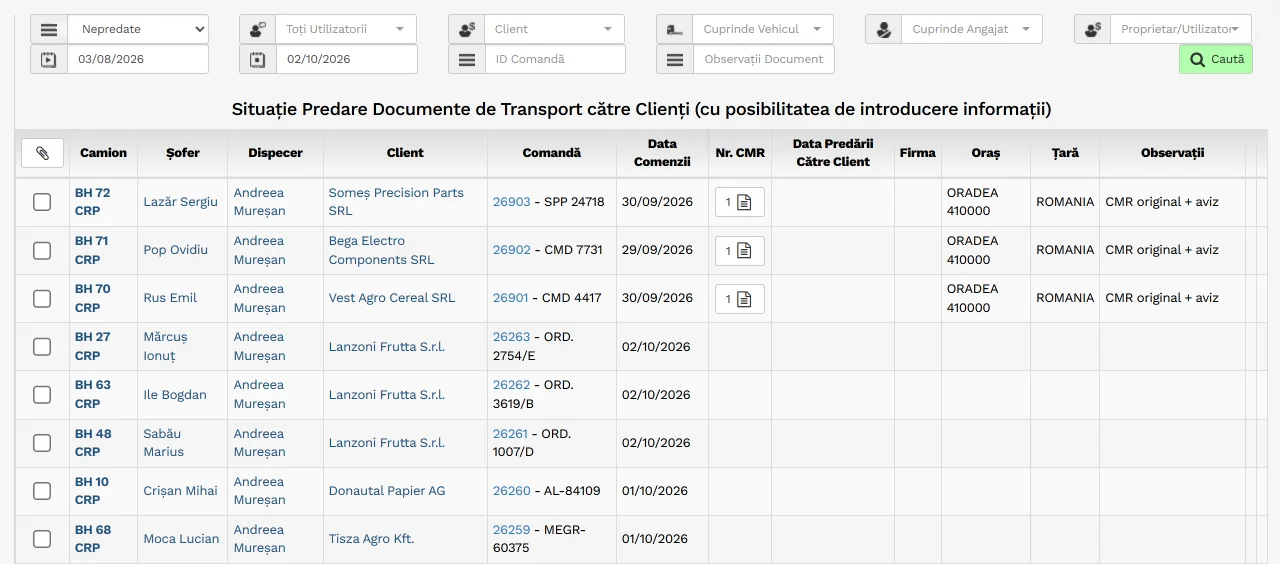
- Not handed over, for the chosen period
- The scanned CMR, attached to the order
- When you handed over the documents
- A remark: “CMR original + delivery note”
- Is the due date counted from handover? The software suggests the new due date
Every order has its own file, from the CMR to the due date.
- CMRs and photos
- In the order file
- To the customer
- In one click
- Cost
- Included in all plans See pricing
Included in all plans.
Demo data.
Everything uploaded to the order sits in its file
The CMR from loading, the CMR from unloading and the photo of the pallets go into the file as the driver or the office uploads them, each with its own date and time.
next day
The customer gets the CMRs in one click
You tick the CMRs and press the envelope: the software takes the photos from the file and writes the email, in Romanian, English or German, depending on the customer's language.
Customer Notifications: an email goes out by itself when the driver presses “Finished”.
4 days
You know when the originals arrived and from when the due date runs
You enter the date, the place and the company of the handover; if the customer's due date runs from receipt of the documents, the software suggests the new due date of the invoice.
You send the invoice to ANAF and see the answer on its row.
- On the invoice row
- Time, status, original
- The signed original
- Stays in the software
- Cost
- Included in every plan
Drawing: the E-Factura page in the software, with invoice FCT 0412 for DEMO Cargo SA, of 2.450,00 lei, lifted above the other rows. The steps happen on the row: the invoice is prepared for e-Factura and gets the number 7731; the window “Modify E-Factura Information” opens; the ANAF validator answers “Validated”; the invoice is uploaded to ANAF, with the index 5100004120, on 12/10/2026 at 14:05; the status changes from Unspecified to Processing and then to Accepted, at 14:11; at 14:12 the signed original, the ZIP file, arrives in the software. The yellow “E-Factura” button then asks for the status of the other invoices sent from the page too.
You follow the time, the status and the signed original on the same row. The signed original stays in the software. Cost: Included in every plan.

-
1“Prepare for E-Factura”
You tick the invoice. The software turns it into the file for ANAF.
Your company and the customer come from the partner records, the county from the postcode, the IBAN account from the company record, the VAT from the invoice. Nothing goes to ANAF yet.
-
2“Modify E-Factura Information”
The lines come from the invoice. Before they go out, you can change them.
For transport, each order becomes one line, with its code and route. You can change the VAT category, the name, the order reference or the IBAN account, and with “With PDF: YES” the invoice PDF goes in the same file as the XML.
-
3“Validate/Verify”
You check it with the ANAF validator before you send it.
The validator answers with “Validated” or with the list of errors. Checking does not upload the invoice, and you only find out whether it is accepted at the status step.
The validator's answer -
4“Upload E-Factura to ANAF”
You upload it to ANAF, and the row remembers when.
On the row you see the upload index received from ANAF and the time it was sent, under “Message Date”. The row's buttons change: from here you ask for the status and fetch the file from ANAF.
-
5“Query E-Factura Status”
What ANAF answered is written on the row, with the time.
You press “Query Status” and the Status cell shows the answer: Accepted, Not accepted or Processing, with the time under “Status Date”. The status does not change by itself: you ask for it with the button.
-
6“Download the zip file from ANAF into the database”
The signed original stays in the software.
You fetch the ZIP file from ANAF: the invoice XML with the signature of the Ministry of Finance, that is, the original. SPV keeps it for only 60 days; the blue button on the row gives it to you on your computer, with no new trip to ANAF.
The 60 days: OMF 1365/2021, art. 8 para. (2). Checked on 05.10.2026.
-
7the yellow button above the table
One button for the whole page.
The yellow “E-Factura” button goes through the invoices sent from the page one by one, asks for their status and brings the files of the accepted ones into the software. What has not been sent yet you see with the filter “Not uploaded to ANAF”.
You check the company before you work with it.
- Company in Romania
- ANAF, by tax ID
- Company in the EU
- VIES, by VAT number
- Licence and CMR insurance
- Their dates, tracked by the software
Drawing: the record of a new company, on a desk, seen from above, with three boxes. In the first, the company record: tax ID RO 7654321 (demo), the blue ANAF button, and Name and Address still empty. When you press ANAF, the software asks ANAF, the building above, about a company in Romania: the answer arrives in the second box, and in the first the Name (DEMO TRANS NORD SRL) and the Address (STR. DEMO NR. 12) fill in by themselves. Only the empty fields are filled in. For a company in the EU, the flag with stars to the right of the building, you check in VIES; the answer comes from VIES, not from the ANAF box. In the third box, the transport licence and the CMR insurance each have their own expiry date, 14.03.2027 and 28.09.2027 (demo data), which you enter yourself; the software counts the days until expiry.
Company in Romania: ANAF, by tax ID. Company in the EU: VIES, by VAT number. Licence and CMR insurance: their dates, tracked by the software.
press ANAF only empty fields are filled in
company in Romania
company in the EU
the answer comes from VIES
Company record
ANAF answer
- Registered for VATYES
- VAT on collectionNO
- StatusActive
- e-FacturaYES
Licence and CMR insurance
Licence 14.03.2027
CMR insurance 28.09.2027
you enter them, the software counts the days
Company record
press ANAF ANAF has answered
only empty fields are filled in
company in Romania
company in the EU
answer from VIES
ANAF answer
- Registered for VATYES
- VAT on collectionNO
- StatusActive
- e-FacturaYES
Licence and CMR insurance
Licence 14.03.2027
CMR insurance 28.09.2027
you enter them, the software counts the days
e-Transport
The UIT code, from ANAF to the driver's folder.
- UIT codes
- Fetched from ANAF in one click
- For the driver
- Sheet with QR code
- Cost
- Included in every plan
You fetch the UIT codes from ANAF in one click. The sheet with the QR code goes into the driver's folder. Included in every plan.
Example with demo data. On the E-Transport General page, after the button “Download Info Messages from E-Transport ANAF”, the list has four UIT codes in which DEMO Logistik SRL is the carrier. The first: UIT 7KQ4DEM9X2LT8RW5, declarant DEMO Textil SRL, truck B101DEM, trailer B202DEM, transport date 07/10/2026, expiry date 22/10/2026, internal reference TO-24817. The sheet “Print E-Transport ANAF info” has the same data, plus the CMR document 24817 of 06.10.2026, loading at the border crossing point Borș 2 - A3, unloading at Cluj-Napoca and, at the bottom, the QR code of the UIT. The sheet goes into a plastic sleeve, in the folder of truck B 101 DEM, of driver Andrei Matei. Then, on the other three UIT codes, the truck B909DEM changes to B303DEM: the new value appears in red under the old one, and the status becomes “Processing”.
-
You fetch the UIT codes from ANAF
You press “Download Info Messages from E-Transport ANAF” and the list fills with the UIT codes in which your company is the carrier. On each row you see the code, who declared it, the truck and the expiry date.
-
You print the sheet from the row
The printer icon on the row opens the sheet “Print E-Transport ANAF info”. On it go the UIT, the declarant, the carrier, the truck, the trailer and the transport data, received from ANAF.
-
The QR code of the UIT
At the bottom of the sheet, the software also puts the UIT code as a QR code. On screen, the “Show Original Data” tick shows you the data exactly as ANAF gave it, with the history of truck changes.
-
The sheet, in the driver's folder
At an inspection, the driver shows the UIT code. It is on the sheet, written out and also as a QR code, together with the date until which it is valid.
-
You change the truck at ANAF, before it leaves
On one UIT code or on several at once. Until ANAF confirms, the new value stays in red under the old one.
Transport DateVehicle No.Status 06/10/2026 00:0007/10/2026 05:30B909DEMB303DEM-Processing
You declare, check, correct and delete the declaration from the software, without going into SPV. One ANAF key, for e-Factura and e-Transport. Demo data.
You find out which documents expire before an inspection, not after a fine.
- When you find out
- On opening
- For
- Trucks, trailers, employees, partners
- Days left
- The software counts them
The window opens by itself when you open the software. First what has expired, then what expires soon and what comes next.
The window opens by itself when you open the software. The same 9 documents, with the same numbers.
Also on opening, in the top band: whether the database has not been saved for more than 7 days, and how many old orders there are, active or without points. Demo data.
Any time, from the triangle in the top bar. Demo data.
Drawing with a line that is dragged between two halves. Before, on paper: a wall calendar for October 2026, with 18, 19 and 24 circled in red (FRC B88, ITP BV55, RCA CJ07); the September sheet, torn from the calendar, with 7 circled (ITP CJ07); a pink note: Marin, tachograph card, expires on 16 October; a sheet from a notebook: DEMO Cargo, transport licence expires on 21 October; three yellow notes: CJ07LOG, Casco, 8 November; DEMO Cargo, CMR insurance, 12 November; B88SEM, ITP, 17 December. With Soft-Transport, on opening: the Expiry Dates window, open over the software. At the top, a band: the database has not been saved for 12 days; 4 old orders. Below, the documents by period. Expired: ITP for CJ07LOG, 41 days ago; the tachograph card of Vlad Marin, 2 days ago. This week, 18 October: FRC for the trailer B88SEM, today. Next week, 19–25 October: ITP for BV55CRG, tomorrow; the transport licence of the partner DEMO Cargo SA, in 3 days; RCA for CJ07LOG, in 6 days. Later, from 1 November: Casco for CJ07LOG, 8 November; the CMR insurance of DEMO Cargo SA, 12 November; ITP for B88SEM, 17 December. At the bottom: “Press a document to change its date.” and the button “Got it”. Each document has the same number, from 1 to 7, on paper and next to its document in the window. Demo data.You choose the days. The AI scanner reads the dates.
- Days per document
- From 0 to 180
- From a photo
- AI scanner
- Lists and calendar
- Printed, in Excel, by email
Drawing with demo data, in two parts. On the left, the Expiry Dates window of the software: a document with the half-full sign “expires soon” means that less than half of the warning period is left; the warning period: ITP 90 days; RCA, Casco and others 30 days; Road vignette, FRC and others 14 days. On the right, the photo of an ITP (truck BV55CRG, valid until 18.10.2027); from it, through the button “Scan truck documents (registration certificate, ITP, RCA)”, a pencil arrow, “read from photo”, leads to the Modify Truck window, where the ITP Expiry box has the date 18/10/2027, highlighted; a pencil note: uncertain fields are marked.
The warning days are set from 0 to 180 days, for each document. The expiry lists are printed, exported to Excel and sent by email.
You choose the days yourself, for each document, in administration, under “Expiry Warnings”.
The AI scanner reads the documents of drivers, trucks and trailers (driving licence, ID card, registration certificate, ITP, RCA and others) and fills in the record; you check it before saving. Demo data.
In brief
Works with what you already use
Invoices and declarations go out from the software, and the documents are kept in the company's Google Drive.
Works with
ANAF e-Factura ANAF e-Transport VIES Google Drive
Your company's automation starts today.
- Trial
- 3 days, on Ultra Light and Light, with monthly payment
or call 0756 777 722