Order: The office sees where the trip has got to
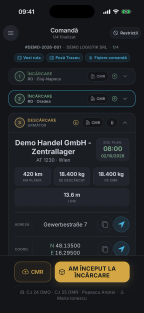
At each point, the driver taps “I have arrived”, “I have started” or “I have finished”.
For fleet managers and drivers
3 days free, on Ultra Light and Light, with monthly payment
Enter the login details from your GPS provider once and you know straight away whether the link works. Then the trucks appear on the map.
Drawing, with made-up data. On the left, Program Settings, the Telematics Connections page: you search for “web” and find the WebEye card, labelled Configured. The card holds the URL, the user and the password (hidden), the Save and Test connection buttons, and the message “✓ Saved”. On the right, the Telematics page of Soft-Transport: the map with trucks B 101 DEM near Győr, B 606 DEM in Budapest, B 303 DEM near Szeged and B 404 DEM, stopped at Arad; beside the map, the list of trucks with their active order and speed: B 101 DEM, order 990418, 78 km/h; B 303 DEM, order 990422, 76 km/h; B 404 DEM, order 990420; B 505 DEM with no order; B 606 DEM, 72 km/h. Below the list, a handwritten note: “Odometer reading comes from GPS into the order, in one click”.
Works with WebEye · SafeFleet · Frotcom · Arobs TrackGPS · Eurowag · CargoTrack · Wialon · EasyTrack · EvoGPS · Lupa GPS
Link to the GPS included in every plan

For drivers, on iPhone and Android.
In Romanian, English, German and Russian.
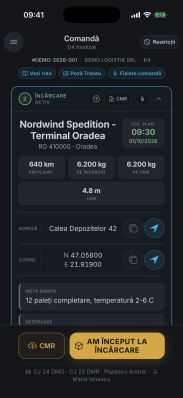
At each point, the driver taps “I have arrived”, “I have started” or “I have finished”.
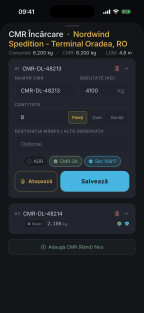
The driver attaches a photo of the CMR from the phone. If you want, the customer gets it too.
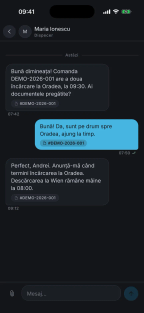
The driver and the dispatcher write to each other in the app and see when a message has been read.
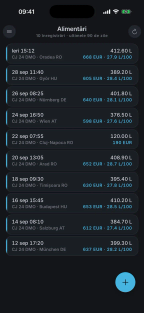
The driver enters the fill-up from the phone, and the office sees the consumption per 100 km at once.
On trucks linked to GPS, the odometer reading is already filled in on the driver’s phone.
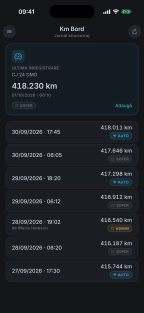
The screenshots are from the app, with sample data.
Example with made-up data: Monday, 14/09/2026, for the driver Andrei Pop, with the truck CJ12ABC, read from the card file C_20260915_0712_A_POP.ddd. We drew the dial from the card data.
Start of the working day: 06:10, in DE, at 412.180 km. End: 17:10, in DE, at 412.792 km.
The program reads every change of activity from the card file, with its minute, and in Tachograph Query it joins all of the driver’s files end to end, without duplicates. The truck, the country and the kilometres at the start and end of the working day also come from the card.
Example with made-up data. We drew the dial from the card data. In the program, the day appears in the Tachograph Query table and, in the new version, on the 24-hour band. Hover over the dial or tap it to see each activity.
The day’s 24-hour band, ready to print.
You tick what counts as time worked. For each day and country, the card hours sit next to those estimated from kilometres and loadings, so you see what does not match. When the day has data on the card, the calculation uses the card hours. The tachograph report prints strictly for the posting periods.
Example with made-up data: trip 1187 of Pop Andrei, with the truck CJ 12 ABC, in September 2026.
Example with made-up figures: trip 1187 of Pop Andrei, from 09/09/2026 05:30 to 24/09/2026 21:40. Outbound, through Romania, Hungary and Austria: delegation. Then posting in Germany, 6,20 days, and in France, 3,92 days, that is 10,12 days. On the way back, through Germany, Austria, Hungary and Romania: delegation.
Friday, 18/09/2026 · France
Meal Allowance, 10,00 € per day: it stays alongside and does not enter the comparison.
Trip 1187Pop Andrei, CJ 12 ABC
The dispatcher sets the entry into and exit from the country on the order. If you have made them visible in the driver account, the driver confirms them from the phone with “I have arrived at …” and the odometer reading. Between them it is posting; the rest is delegation.
In the picture, with made-up data: the message from the driver app, 11/09/2026 at 16:20: “I have arrived at Border Entry (Posting Status) CJ 12 ABC in 94032 PASSAU DE, Odometer km: 410958”. The posting in Germany starts here.
Monday, 14/09/2026Germany
You enter the rates once, by country, with the date from which they apply. The report in Posting Settings shows you, per hour, how much must come from the gross salary for the driver to reach the minimum.
4,91 € per hour. That is what Pop Andrei’s salary comes to, 4.400 lei gross for 22 working days, at the National Bank of Romania (BNR) exchange rate at the start of the month. It is enough for Germany, by one cent.
In the drawing, with made-up figures: on Monday, 14/09/2026, in Germany, Pop Andrei worked 9,75 hours. On the left pan sits the minimum required, c11, 136,50 €. On the right pan sit the posting allowance, c12, 88,73 €, and the gross salary for the hours worked, c13, 47,89 €. The scales are level: the difference, c16, is plus 0,11 €. Beside it, the report printed from Posting Settings, valid on 01/09/2026: Germany, from 01/01/2026, 9,10 EUR allowance per hour, 14,00 EUR minimum per hour, 4,90 EUR per hour to be covered from the gross salary; France, 6,50 EUR, 12,40 EUR and 5,90 EUR.
Friday, 18/09/2026France
Here 5,90 € per hour must come from the gross salary, and he has 4,91 €. After 8,50 hours, the driver receives 97,00 €, below the minimum of 105,40 €, and the red triangle appears in Posting Calculation.
In the drawing, with made-up figures: on Friday, 18/09/2026, in France, after 8,50 hours worked, the minimum required is 105,40 €, and on the right pan sit 55,25 € posting allowance and 41,75 € from the gross salary, 97,00 € in total. Above them a gap of 8,40 € remains, and the scales tip towards the minimum. In the Posting Calculation table, the row for 14/09/2026, DE, has the difference 0,11; the row for 18/09/2026, FR, has the total 97,00 and the difference minus 8,40, with the red triangle.
Same daywith extra allowance
In the saved calculation you enter the amount on the day’s row. The row total is recalculated at once: 106,00 €, 0,60 € above the minimum, under the day’s cap of 87,50 €.
For the whole trip? With Distribute Extra Allowance, the program splits the amount across the days, within each day’s cap, and tells you how much is left.
The recap puts on one row what you have granted, the department’s minimum and the trip’s maximum deductible limit. For companies in Romania, the monthly tax-free cap also appears.
In the drawing, with made-up figures: on the same day, 18/09/2026, in France, 9 € of extra posting allowance is added. The gap closes, the total becomes 106,00 €, the difference plus 0,60 €, and the scales level out. The Saved Posting Calculation window for Pop Andrei, 09/09/2026 05:30 - 24/09/2026 21:40: on the row for 18/09/2026, in the Extra Posting Allowance field, 9 is entered instead of 0, and the total and the difference change from 97,00 and minus 8,40 to 106,00 and 0,60. At the bottom: “The totals shown are for the saved values” and the buttons Distribute Extra Allowance, Print and Save. Below it, the two windows for distributing across the trip: the question “Enter the total amount of the extra allowance that you want to distribute automatically”, with 36 typed in, then the answer “Out of total: 36. Amount successfully distributed: 36. Undistributed amount remaining: 0”. At the end, the program row “Monthly Tax-Free Cap: 1.847,58 EUR”.
All trips are listed in the Trips Summary, the table for the accountant, to print or in Excel. From here you also print the travel order, in Romanian, English or Russian.
The month’s income sheet shows the posting hours for each country, the allowances, the meal and the delegation. You enter the net salary yourself.
The countries fill in by themselves: first those with posting, then those with delegation, each one only once.
In the picture, with made-up data: the Travel order (delegation) abroad, international transport, dated 08/09/2026, for Pop Andrei, driver, identified by ID card CJ 482913, delegated for the period 09/09/2026 - 24/09/2026 in the department International Drivers. The countries fill in by themselves: DE, FR, RO, HU, AT, first those with posting, then those with delegation. Behind it, the month’s income sheet. Below, the row for trip 1187 in the Trips Summary: Pop Andrei, the order dated 08/09/2026, Total Trip Days 15,67, Of Which Posting Days 10,12, Number of Days on Delegation 5,56, Total Allowance for Trip 1.018,18 euro, with the print and Excel buttons.
The fragments are drawn after the program’s screens. The data is made up.
Example with made-up data: the timesheet of the company DEMO Logistik SRL for September 2026.
The number appears on each day with a loading or an unloading, and a click on it opens the order. Days between orders get a dash, and weekends are coloured.
Drawing: the Employee Timesheet page of the program, for September 2026, with six drivers in rows and the days from 1 to 30 in columns. As it scrolls, the month fills in from left to right: on days with loadings or unloadings the order numbers appear, for example 990352 for Matei A. on the 1st and the 3rd, with a dash between them. Lungu V. has CO from 1 to 6, on a light blue background, days covered by a leave certificate, then DI from 7 to 17. Stan V. has LP from 11 to 13. Weekends are coloured. At the end, a note: a click on a number opens the order.
You press “+” next to the name and choose the day and the status. The code repeats by itself, day after day, until the next order or status. Annual leave, sick leave, paid time off and remote work each have their own code and colour.
Drawing: the plus button next to Marin V. opens the window “Record Employee Status Marin Vlad”. Status Date becomes 21/09/2026 08:00, Annual Leave is chosen from the Status list, Notes stays empty, then Save. After saving, in Marin V.’s row the dashes on days 21–30 turn into CO one after another, in blue, and above a day with CO the bubble “Annual Leave” appears.
You track employees’ documents under Expiry dates. Posting under the Mobility Package is calculated from orders: see the section Posting of drivers.
Included in the licenceIt is not a separately paid module. Driver changes are included from the Light plan up.
All of it has been with customers for years; it is not a novelty.
Employee ReportCtrl1
A problem with an employee becomes a report: written up with photos, checked, then validated by a manager. A red circle in the menu shows you the new reports, and the ones about office colleagues are seen by the manager, not the whole company.
Report states in the program: Active, then Verified, then Validated
Extended Driver Report and Driver Ranking
How each driver worked, with the rating from each order.
Driver Changefrom Light
You put the new driver on the truck, and the program closes the old driver’s turn by itself and records his days at home. Two drivers swap trucks with Swap Between 2 Vehicles. For the current week you have the Current Week Changes page, ready to print.
Phone NumbersCtrl9
You type a name or a truck and get the personal phone, the work phone and the truck’s phone. In the address book you also see the truck and the order the person is on right now.
MessageCtrl8
You write to one colleague or to all dispatchers at once and see who has read it. When you write to a single colleague, the message can also go out on WhatsApp.
Handover Summary
You know who has the work phone, the SIM card and the fuel card right now, from the handover report signed by both.
Travel order
It prints from the Trips Summary, in Romanian, English or Russian, with the details from the ID card and the countries of the trip.
The fragments are drawn after the screens of version 34. The data is made up.
Between two fill-ups, the program puts the actual consumption next to the standard consumption, calculated from the tonnes carried on orders.
| Fill-up to fill-up | Km | Litres | Average tonnes | Actual consumption (l/100 km) | Standard (l/100 km) | Difference (litres) |
|---|---|---|---|---|---|---|
| 01/09 → 03/09 | 1.374 | 400,00 | 19,20 | 29,11 | 29,68 | −7,80 |
| 03/09 → 06/09 | 1.604 | 402,50 | 6,40 | 25,09 | 24,56 | +8,56 |
| 06/09 → 09/09 | 1.442 | 434,00 | 14,98 | 30,10 | 27,99 | +30,37 |
| 09/09 → 13/09 | 1.655 | 489,00 | 20,10 | 29,55 | 30,04 | −8,16 |
| 13/09 → 16/09 | 1.368 | 350,00 | 9,80 | 25,58 | 25,92 | −4,59 |
| 16/09 → 20/09 | 1.388 | 409,00 | 17,40 | 29,47 | 28,96 | +7,04 |
Refuelling, the FAZ sheet and reefer consumption are included in the plan, in any of the four.
The program shows the difference, and a person checks it.
Technical reports
Drawing seen from above, an example with made-up data: the same truck, B 101 DEM, three times on the road. The technical report goes through three states, Active, Read and Resolved, and the colour tells you where it stands. 1, Active, pink: near Nădlac, the driver reports a noise at the front brake, on 29/09 at 07:42. 2, Read, yellow: seen at the office and booked at the workshop, on 29/09 at 10:15. 3, Resolved, green: at DEMO Service, in Cluj-Napoca, the office closes it on 06/10 at 15:46, with 1.240,00 RON on brakes, and it stays in the history. The whole time, 7 days, the report stays in view on the Technical reports list.
The driver reports a noise at the front brake from the phone. At the office, the report appears on the list, in pink, with the truck, the km, the type of problem and the photos.
Whoever checks it sets the urgency, four spanners out of six, and writes what happens next. The row turns yellow and stays on the list.
You enter the end date and the cost for each problem: 1.240,00 RON on brakes. When you save, the chosen state goes onto the report: Resolved, green. It is not deleted; it stays in the truck’s history.
Reports and interventions, oil changes and scheduled servicing, tyres and the truck inventory are included in every plan.
Vehicle servicing
Drawing: two identical repair estimates, side by side. The estimate on the left has the Verified tick: the barrier is raised and the estimate reaches the invoice. The estimate on the right has no tick: the barrier is lowered, the estimate does not reach the invoice and the invoice stays empty.
The Verified tick is set only from the control page, Estimates Control (Check), and only on a closed estimate, with parts or labour. If someone saves a verified estimate again, even with no change, the tick disappears and the estimate must be checked again. Each person sees in the menu only their own pages, set by the administrator. Parts reach the estimate only from Record Service Purchase and Record Service Issue; for parts from stock you enter the price for the estimate and see the markup at once, in green: over 10%. In the Standard, Convenient and Digital+ plans.
In brief
Everything under one roof – refuelling checks, refuelling invoices, FAZ, average-tonnage calculation, truck and trailer records, technical reports. In a word: the essential reports are grouped into several modules, which makes them easy to use.
WebEye SafeFleet Frotcom EasyTrack EvoGPS Wialon AROBS TrackGPS CargoTrack Eurowag Lupa GPS WhatsApp Fuel card file (CSV, TXT)
or call 0756 777 722